Setting Up ResiSync: Reservation Delivery Automations
Resisync serves as the automated link between your event’s room block in Resiada and your Marriott property. Once it has been configured, reservations booked through Resiada flow directly into Marriott—without any manual re-entry and without the need to export files by hand. Getting started requires two steps: first, you designate the specific Marriott property and the room types your event is mapped to within Resiada; then, you enable automated delivery so that new and updated reservations sync according to the schedule you select. This article explains the second step.
Configure Delivery & Automation Settings
Once your codes are mapped, turn on automated delivery so reservations sync to Marriott without anyone exporting manually. Unlike your event template, this step doesn’t carry over automatically, you’ll need to set it up for every event.
1. Navigate to the Rooming List. From the top navigation, open Manage, then select Rooming List under Advanced.
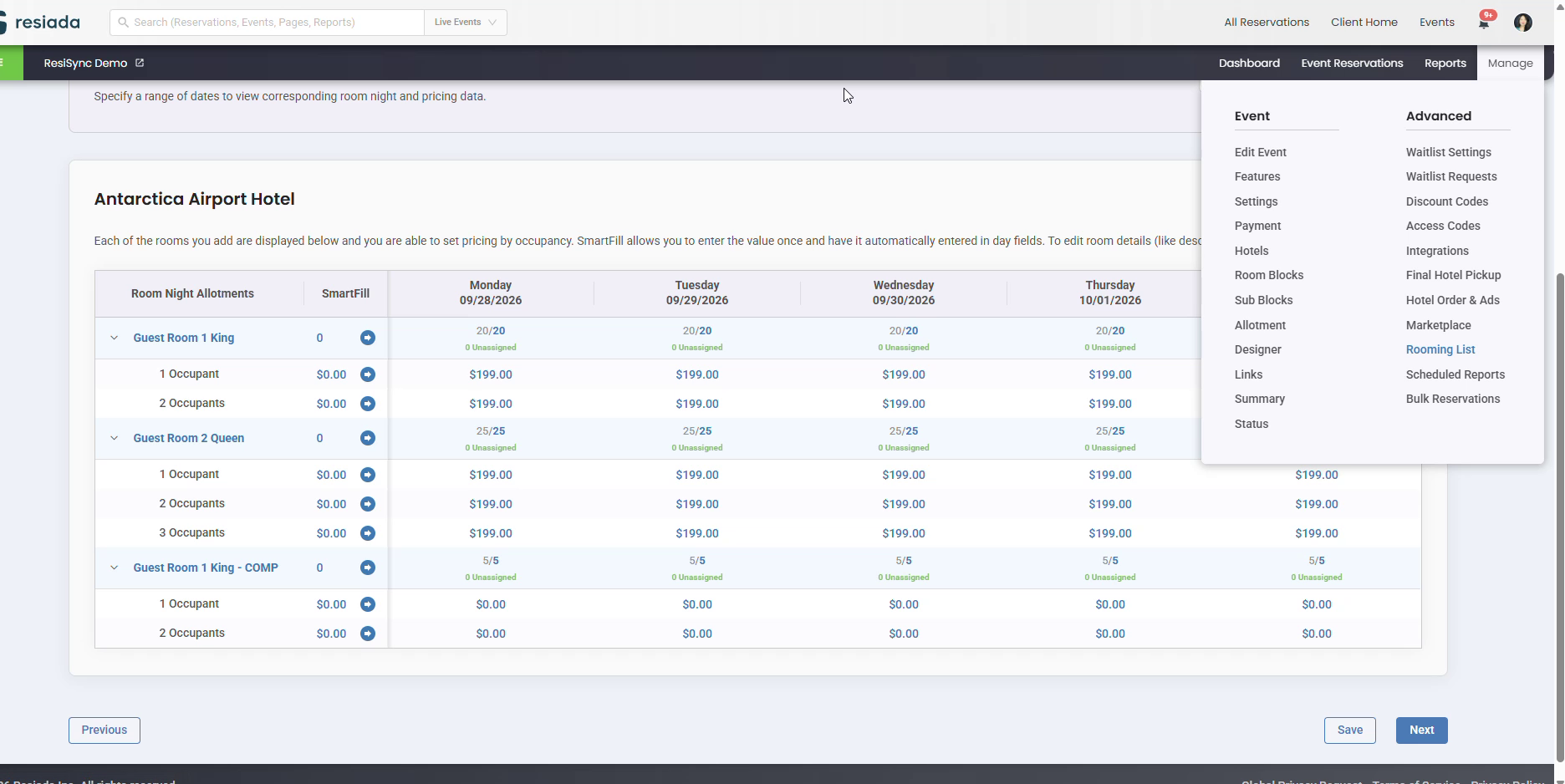
Rooming List lives under Manage › Advanced.
2. Open Delivery Settings. Click the Rooming List Export tab, find your Marriott property, and click Delivery Settings in the Actions column.
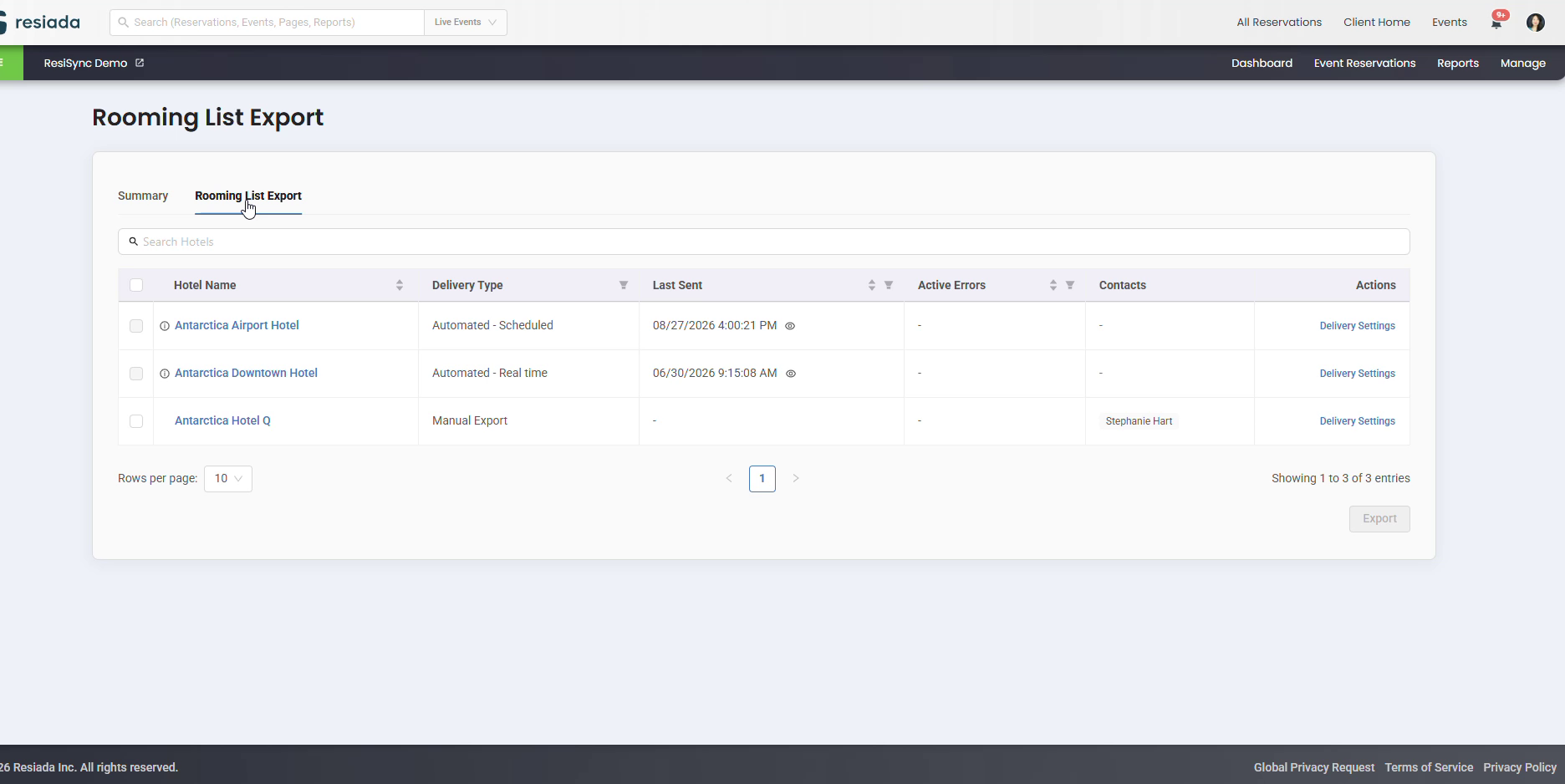
3. Turn on Automation. Under Delivery Controls, switch from Manual to Automation to reveal your sync frequency options.
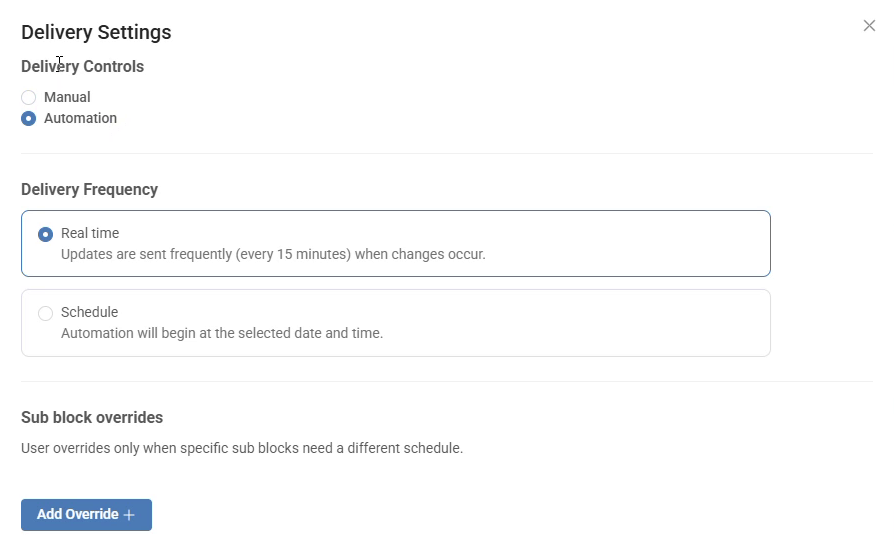
Switching to Automation reveals the Delivery Frequency options below it.
4. Choose your Sync Frequency. Select Real Time to sync automatically every 15 minutes whenever a reservation changes, or Schedule to set a specific delivery date and start time, with a repeat cadence of Hourly, Daily, Weekly, or Never for a one-time sync.
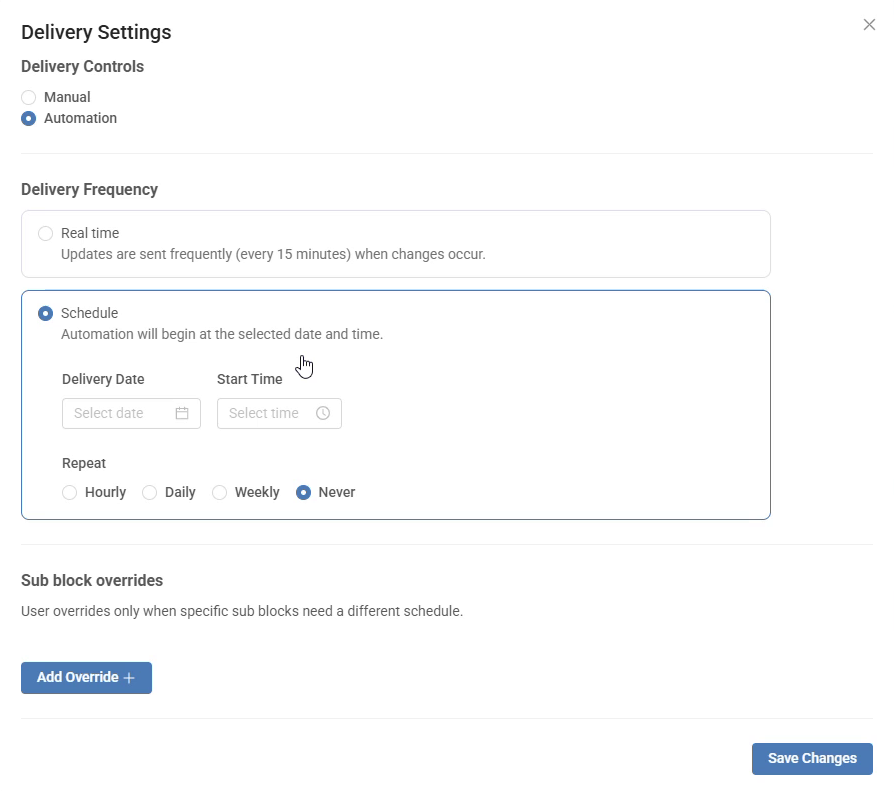
Scheduled delivery lets you set a start date and time, then choose a repeat cadence. Select Never if you only want reservations to sync once.
5. Apply Sub-Block Overrides (optional). If a specific sub-block, sponsors or exhibitors, for example needs a different sync schedule than the main group, click Add Override, select the sub-block, and set its delivery frequency independently.
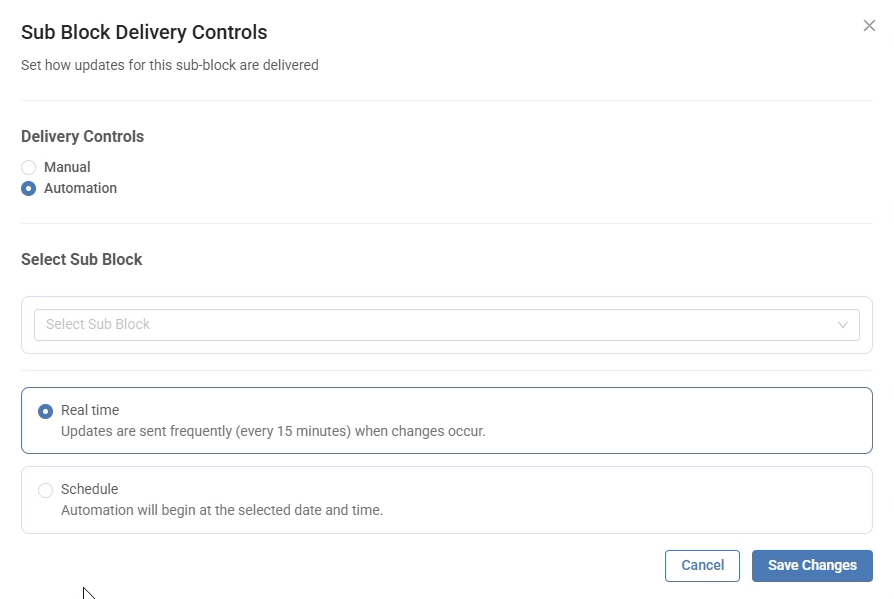
Sub-block overrides sync a specific sub-block on its own schedule; everything else keeps following the main group’s settings.
6. Click Save Changes.