Monitoring the Reservation Sync
Once Group Connect is syncing your rooming list to a hotel, the Rooming List Export page is where you keep an eye on it. It shows, hotel by hotel, how many reservations have synced, how many still need a confirmed room number, and whether the hotel sent back any errors on the last export. From here you can also open a hotel’s full sync history and drill into the exact reservations behind any error.
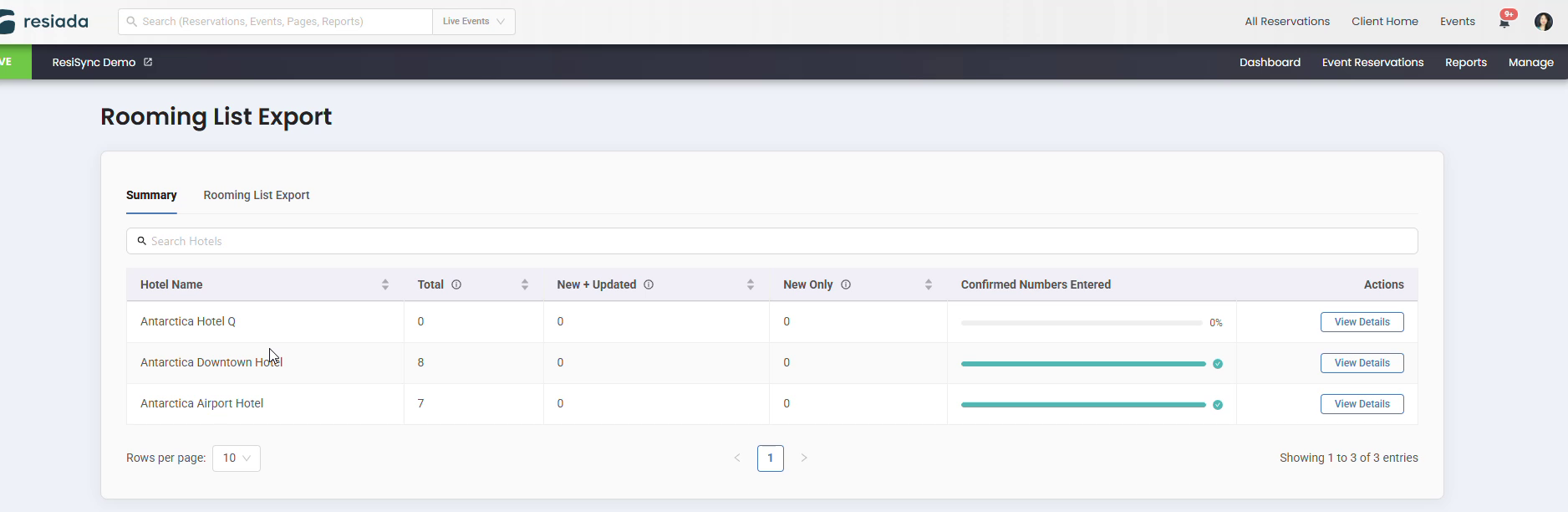
The Summary tab of the Rooming List Export page, showing sync totals for three hotels.
|
Before you start, have these ready
|
STEP 1: Open the Rooming List Export page
From the event, open the Manage menu in the top navigation, then select Rooming List under the Advanced column. This opens the Rooming List Export page on its Summary tab.
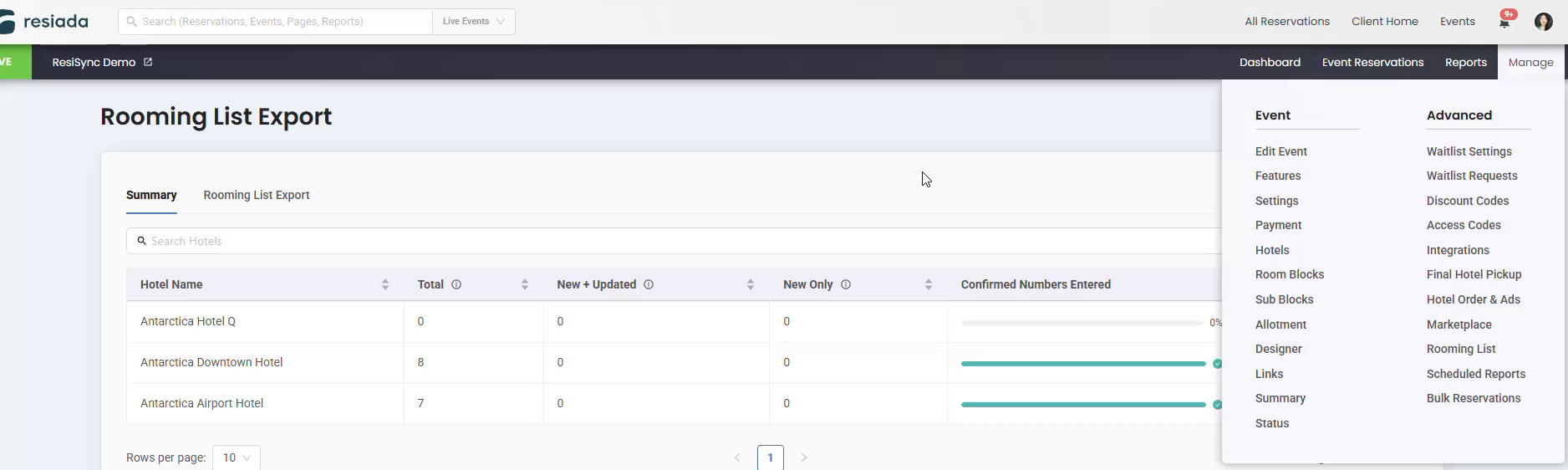
The Manage menu. Rooming List sits under the Advanced column.
STEP 2: Read the sync summary for each hotel
The Summary tab lists every hotel on the rooming list, with four columns of context for each. Total shows how many reservations in total. New + Updated shows how many are new or changed since the last sync. New Only shows how many are new reservations rather than updates to existing ones since the last sync. Confirmed Numbers Entered is a progress bar showing how many reservations have a hotel’s confirmation number.
STEP 3: Open the full sync history for a hotel
Click View Details in a hotel’s Actions column to open its Sync History. This panel lists every sync that has run for that hotel, most recent first, along with the date and time, the number of reservations included, and how many of those reservations came back with errors.
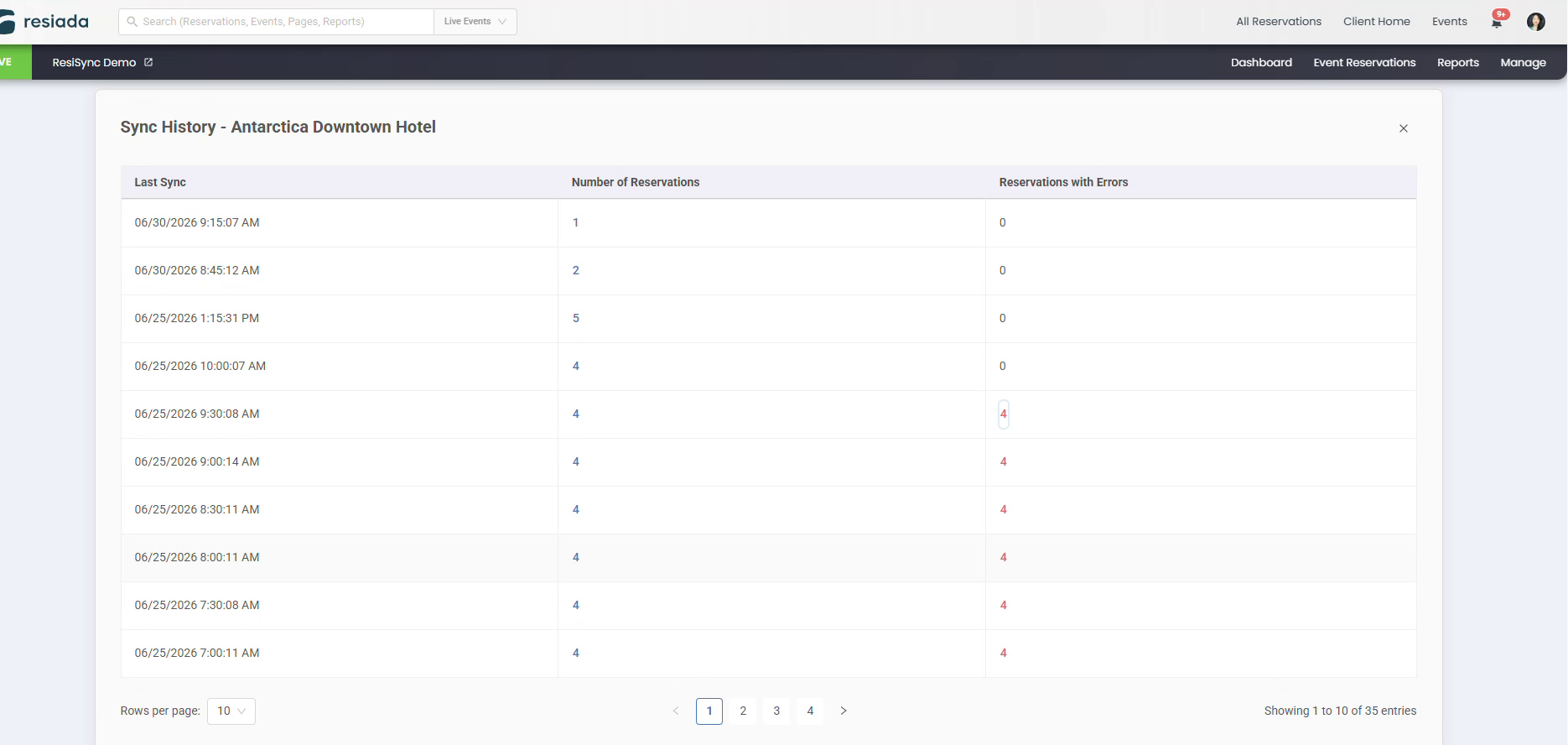
Sync History for Antarctica Downtown Hotel. Number of Reservations and Reservations with Errors are both clickable whenever they show a value above zero.
STEP 4: Drill into a specific sync’s reservations
Click the number under Number of Reservations to open Sent Reservations, a reservation by reservation list showing what was sent, when a response came back, and the confirmation number that was returned.
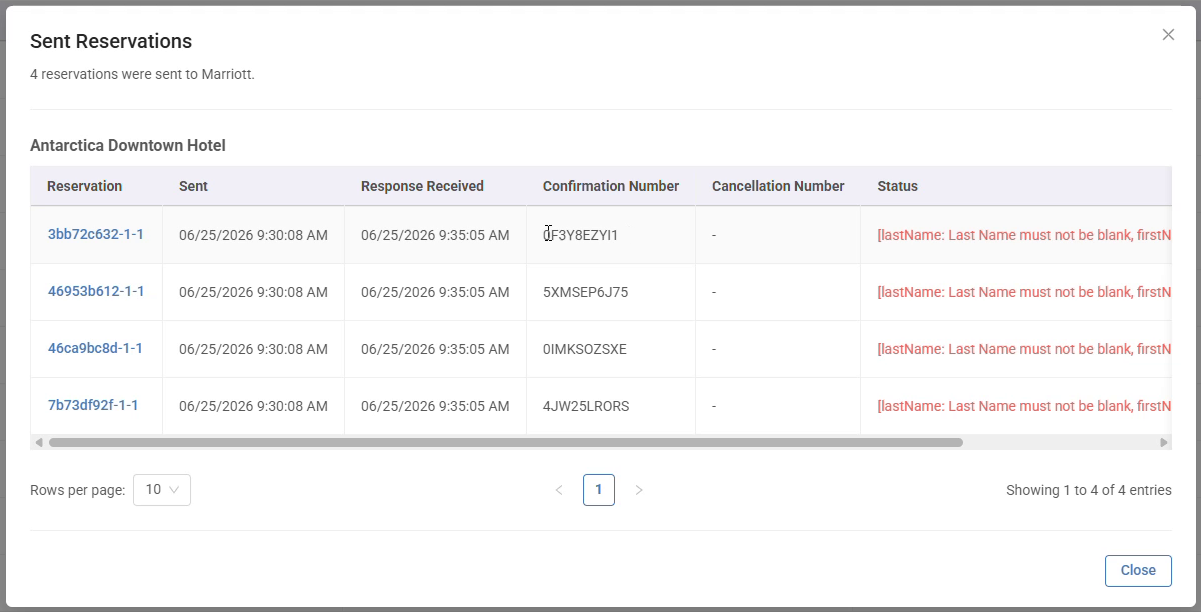
Sent Reservations detail for a single sync: four reservations for Antarctica Downtown Hotel.
If a sync shows a number under Reservations with Errors, click it instead to open Confirmation errors, which lists just the reservations that did not confirm, along with the reason in the Status column. In this example, each flagged reservation is missing a required guest name field.
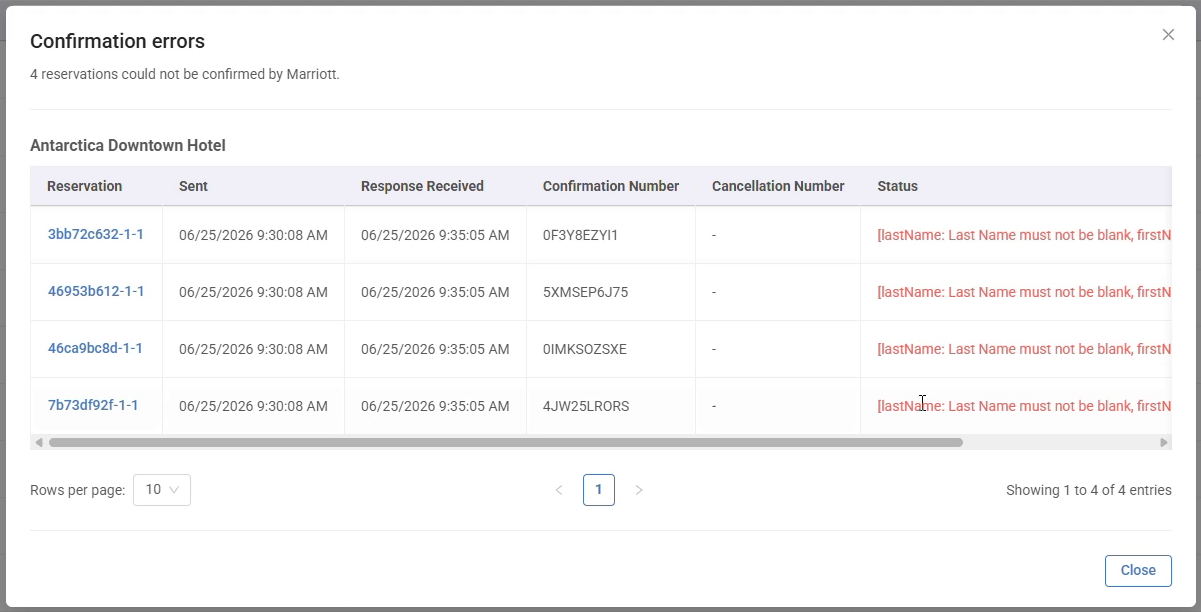
Confirmation errors detail for the same sync. The Status column explains why each reservation could not be confirmed.
|
GOOD TO KNOW Both windows are read only. Close them with Close, or the x in the top right corner, to get back to Sync History. Reservations with Errors only becomes a clickable link when its count is above zero; a clean sync shows a plain 0 in that column instead. |
STEP 5: Check overall delivery health
Switch to the Rooming List Export tab, next to Summary, for a delivery focused view of the same hotels. Each row shows the hotel’s Delivery Type (a manual export, or an automated delivery on a schedule or in real time), when the rooming list was last sent, any active errors, and who the delivery contacts are.
Use Delivery Settings on a hotel’s row to review or change how it receives its rooming list, or select one or more hotels and click Export to send a rooming list manually.
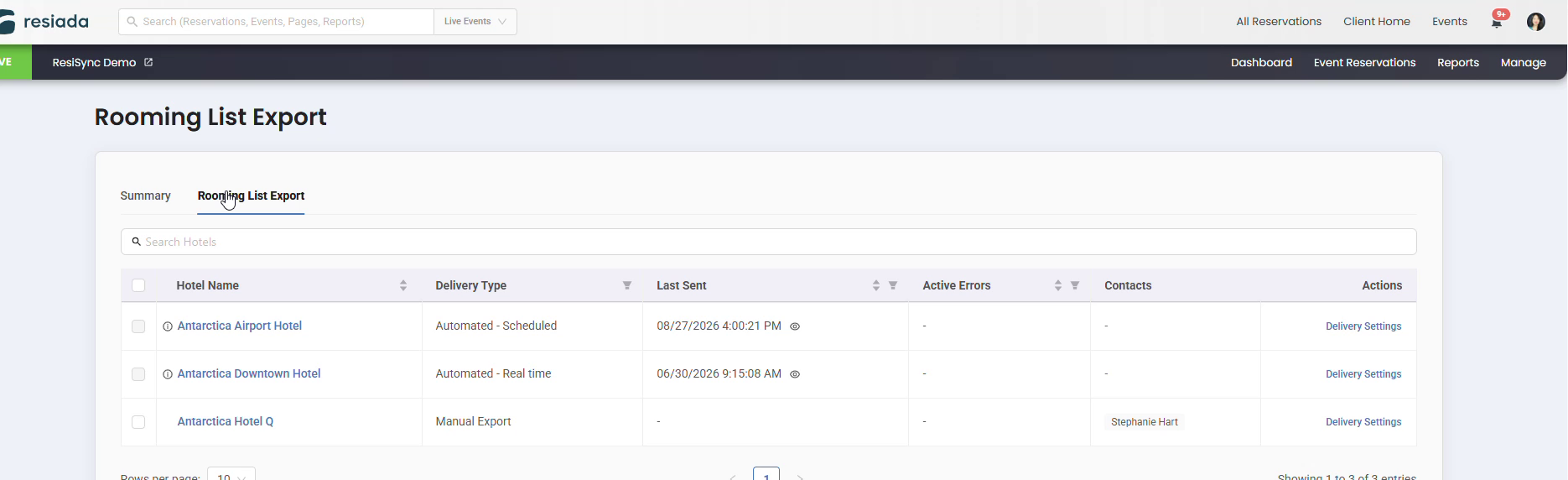
The Rooming List Export tab for the same three hotels: Antarctica Hotel Q set to manual export, the other two automated.
|
You’re all set That covers monitoring a hotel’s rooming list sync from the Summary tab, drilling into a specific sync’s reservations, and checking delivery health from the Rooming List Export tab. Want a follow up article on Delivery Settings itself, or on what to do once you find a reservation with a confirmation error? Just ask. |