Using Dedicated Inventory in Detail
Every sub block in Resiada gets its rooms from one or more inventory sources, the behind-the-scenes pools of hotels and room types that guests never see. Sometimes one group needs its own share of a larger pool. For example, a partner organization might book from the same source as general attendees, but you want a portion of those rooms set aside just for them. Dedicated inventory handles this. On the sub block, you choose which source the dedicated rooms are pulled from and mark them as held, which protects those rooms for that sub block. Then, in the Allotment Manager, you enter how many rooms to dedicate each night, up to what that source has available. The dedicated share shows up as its own locked row, nested inside its source, so you can see it night by night alongside everything else.
STEP 1: Review Your Inventory Sources
Open your event and go to the Sub Blocks step in the wizard tab row. The Sub Block Manager opens. Click the Manage Sources tab.
The Inventory Sources list shows every source on the event, with its Name, whether it is a Default source, its Inventory Type (for example, Contracted), and its Available Room Nights. Make a note of the source you want the dedicated rooms to come from.
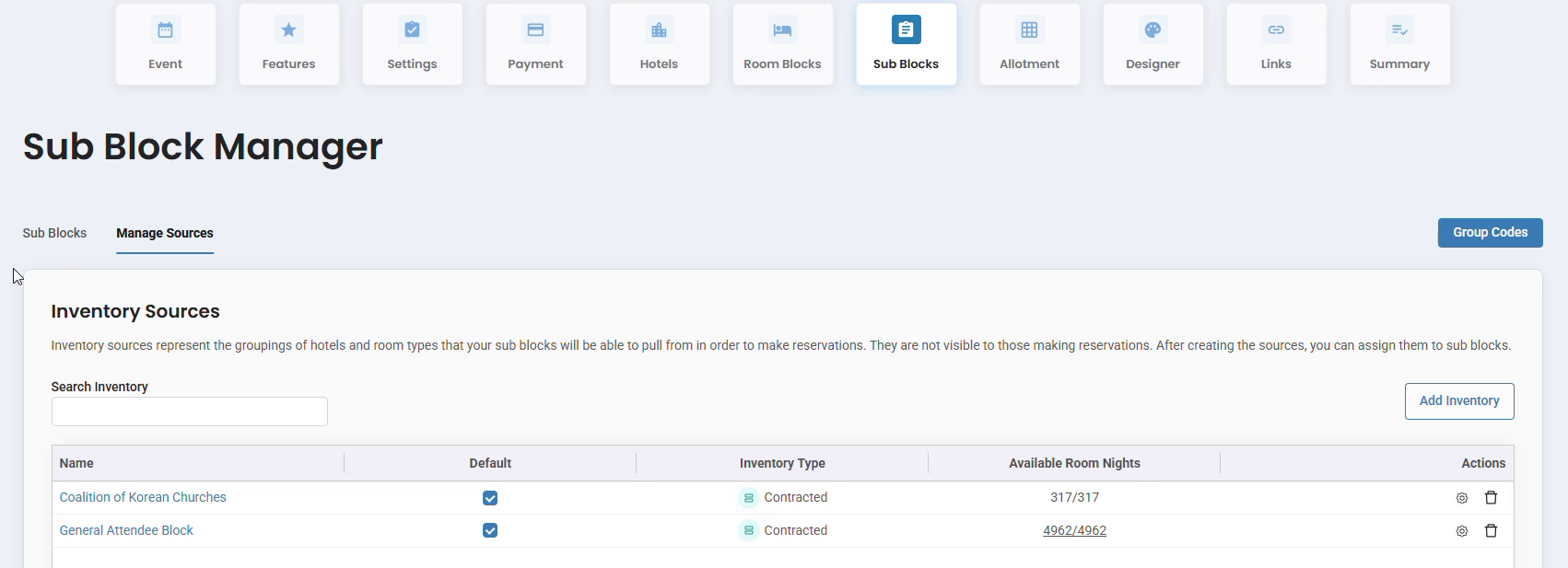
The Manage Sources tab lists every inventory source on the event and how many room nights each one has available.
|
GOOD TO KNOW A source and a sub block can have similar or even identical names, but they are different things. A source is a pool of rooms. A sub block is the booking group guests reserve under, and it pulls its rooms from one or more sources. Dedicated inventory links the two: one sub block, rooms set aside from one source. |
STEP 2: Open the Sub Block
Click back to the Sub Blocks tab. Find the sub block that should receive the dedicated rooms and click its name. This opens the Edit Sub Block page.
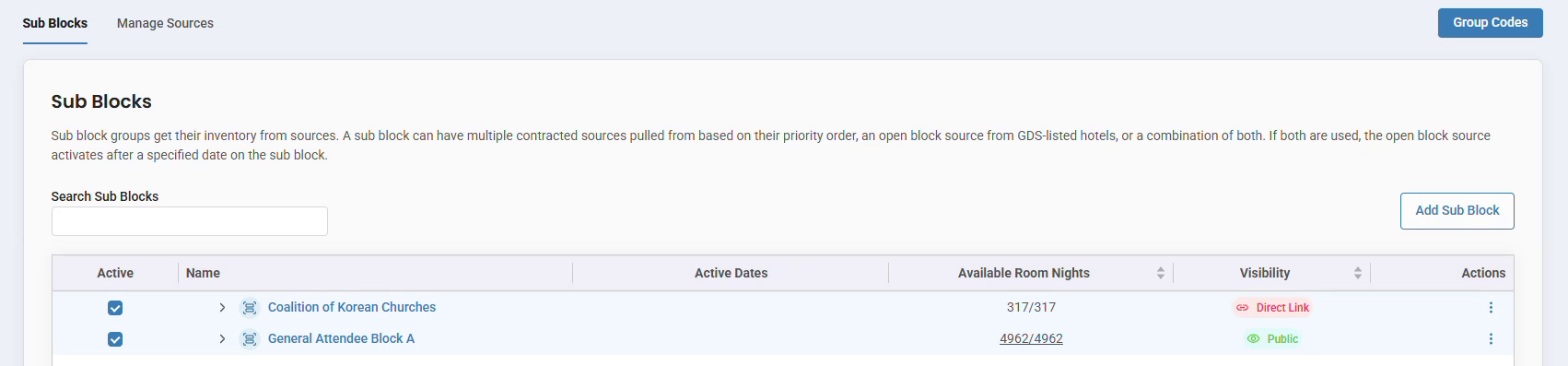
The Sub Blocks tab. Click a sub block’s name to open its settings.
STEP 3: Turn On Dedicated Inventory
In the General section at the top of Edit Sub Block, set up the following:
- Check Assign dedicated inventory for this sub block.
- In Assign Dedicated Inventory From Source (required), choose the inventory source the dedicated rooms should come from. Use the x at the right of the field to clear it and pick a different source.
- Check Mark the inventory from this dedicated source as held. Held inventory is protected and dedicated to this sub block, pulled from the source you selected.
The Active Date Range for the sub block appears on the right of the same section (shown as “Always” when no date limit is set). When you’re done, click Continue at the bottom of the page.
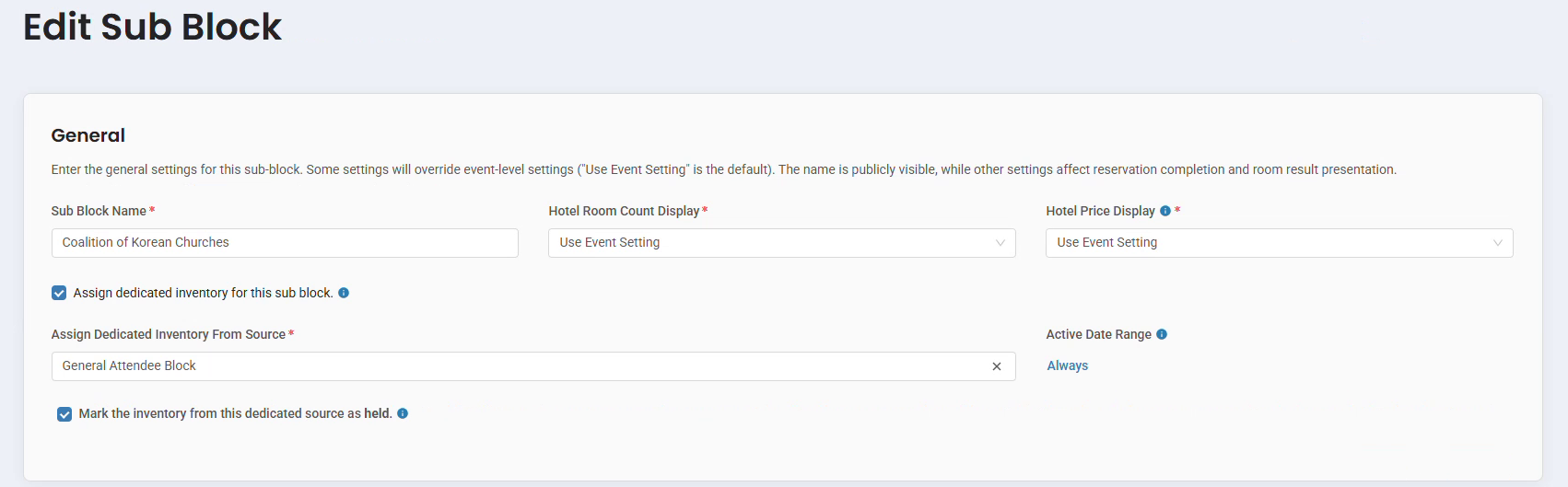
The General section of Edit Sub Block, with dedicated inventory turned on, a source selected, and the held option checked.
|
TIP Hover the small blue info icon next to each checkbox for a quick on-screen explanation of that setting. |
STEP 4: Find the Dedicated Rooms in the Allotment Manager
Go to the Allotment step in the wizard tab row. The Allotment Manager shows a section for each hotel, with a row for every inventory source under each room type.
Click the arrow next to the source you chose in Step 3 to expand it. Under its Pickup, Available, Pickup Percentage, and Waitlist rows, you’ll see a nested row with a lock icon and your sub block’s name. Hover the lock icon and it reads Dedicated Inventory. This row holds the rooms dedicated to your sub block from that source, broken out by night.
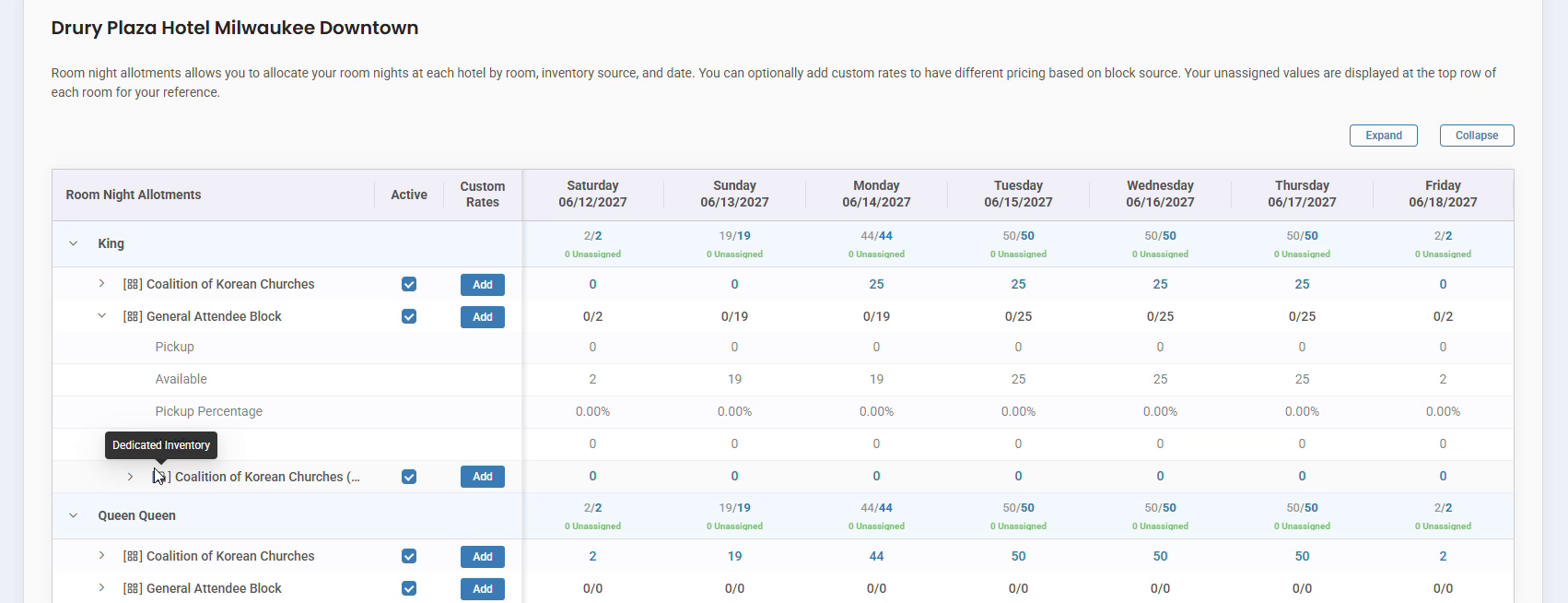
In the Allotment Manager, the dedicated inventory row sits inside its source, marked with a lock icon.
STEP 5: Enter the Dedicated Rooms and Check the Numbers
In the dedicated inventory row, click the cell for each night and enter the number of rooms to dedicate to the sub block. A small pencil icon appears in the corner of a cell when you hover it, showing that it can be edited. You can only dedicate rooms that are available in the source, so check the source’s Available row (just above the dedicated row) before entering a number. Click Save at the bottom of the page when you’re done.
The source row then shows its numbers as two values separated by a slash: rooms dedicated out of rooms available in that source for that night. For example, 10/19 would mean 10 of the source’s 19 available rooms that night are dedicated to the sub block.
Each room type’s top row also shows a green Unassigned count for every night. Hover over any night’s number to open a Room Night Allotments breakdown showing Total, Pickup, Available, Pickup Percentage, and Waitlist for that cell.
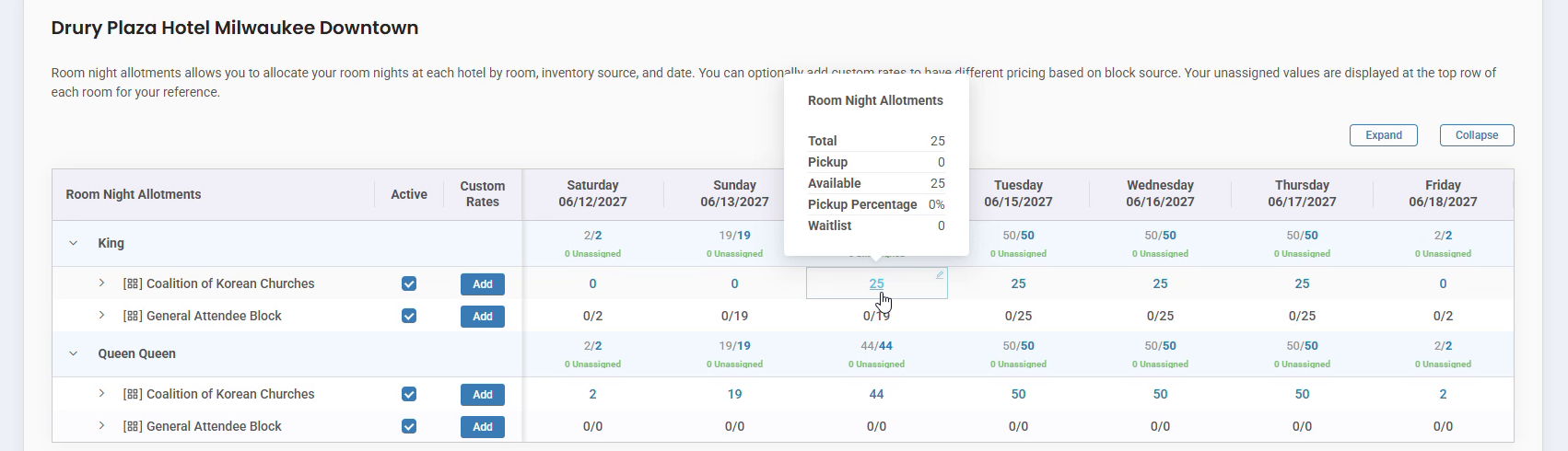
Hovering a night’s number shows the full room night breakdown for that source and date.
|
GOOD TO KNOW
|